Release Notes
September 2020
What's New
In our September release, we’re introducing several helpful updates, including DEP authentication; additional support for Windows 10; and enhanced automation and visibility when validating SSO certificates.
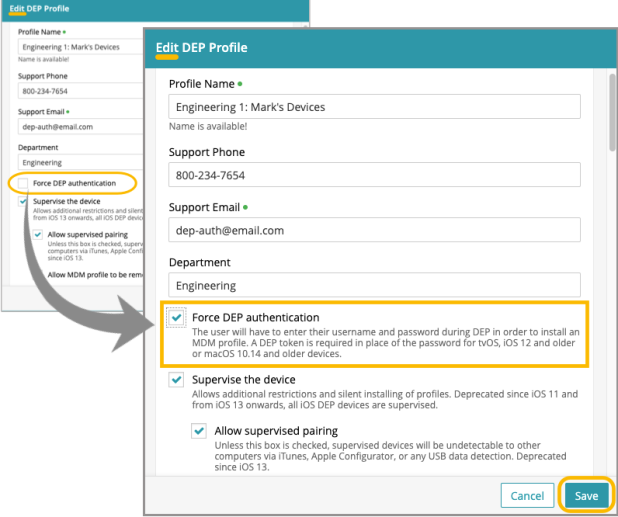
During the DEP Enrollment process, KACE Cloud MDM now offers full account login, including SSO for DEP authentication. This option completely eliminates the need for token authentication on iOS 13 devices and mac 10.15 devices, or later.
As we continue to build out our Windows 10 support, we’re introducing support for deploying Microsoft 365 for Windows. With an active Microsoft 365 subscription and KACE Cloud MDM, an admin can assign licenses to end users, set up a vendor profile, link it to a policy, and distribute Microsoft 365 to devices.
We’ve also made updates across all SAML-based SSO identity providers, including an improvement to automated certificate validation; new thumbprint details that include dates and status; and enhanced troubleshooting sections for each SSO identity provider.
Apple DEP Web Authentication (Mac and iOS)
Full account authentication, including SSO, is now available during the DEP enrollment process. The option eliminates the need for generating authentication tokens for iOS 13+ and mac 10.15+ devices or newer. To enable this feature, in the DEP Profiles section, select the ‘Force DEP Authentication’ checkbox, then Save settings.
For more information on this topic, visit Apple DEP Enrollment Program in documentation.
SAML-based SSO Updates
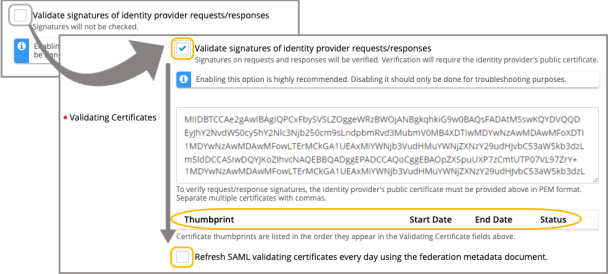
We’ve made an important update to the certificate validation section on the SSO settings page. The ‘Validate signatures of identity provider requests/responses’ setting is now defaulted to selected, and certificates will be automatically checked and refreshed every 24 hours by KACE Cloud MDM. The details for validated certificates will appear in the new thumbprint section, along with date and status information. To ensure daily check and refresh, an admin only needs to select the ‘Refresh SAML … using Federated Metadata document’ checkbox located below the thumbprint section.
For additional information relating to this topic, please visit Single Sign-On in documentation.
Microsoft 365
Admins can now deploy Microsoft 365 to Windows devices using KACE Cloud MDM. The only pre-requisite is a Microsoft 365 subscription.
Before setting up in KACE Cloud MDM, admins should create a configuration file using the Office Customization Tool. The selections made in this file will determine what your Microsoft 365 deployment looks like.
To set up your Microsoft 365 profile in KACE Cloud MDM, go to Libraries > Vendor Profiles > Add New > Microsoft 365 Profile > Upload and Save your configuration. (Note that Apple Profiles and Microsoft 365 profiles have now been combined into a single library called Vendor Profiles.)
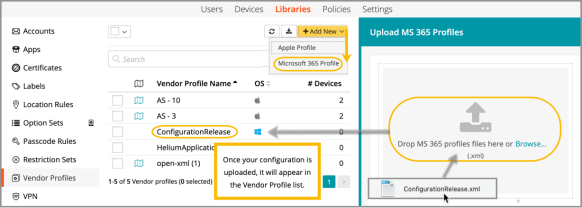
Once your Microsoft 365 profile is added, you can deploy it to devices using policies.
For convenience and consistency, we also recommend that you integrate Azure AD with KACE Cloud MDM. You’ll find additional documentation on this topic in our Help Center: Azure AD - SSO and Windows 10 Enrollment using Azure Domain Join.
Resolved Issues
Bug fixes are included in the resolved issues list for two release periods and are then retired.
Known Issues
Additional Resources
Getting Started with KACE Cloud MDM
© 2020 Quest Software Inc.
ALL RIGHTS RESERVED.
This guide contains proprietary information protected by copyright. The software described in this guide is furnished under a software license or nondisclosure agreement. This software may be used or copied only in accordance with the terms of the applicable agreement. No part of this guide may be reproduced or transmitted in any form or by any means, electronic or mechanical, including photocopying and recording for any purpose other than the purchaser’s personal use without the written permission of Quest Software Inc.
The information in this document is provided in connection with Quest Software products. No license, express or implied, by estoppel or otherwise, to any intellectual property right is granted by this document or in connection with the sale of Quest Software products. EXCEPT AS SET FORTH IN THE TERMS AND CONDITIONS AS SPECIFIED IN THE LICENSE AGREEMENT FOR THIS PRODUCT, QUEST SOFTWARE ASSUMES NO LIABILITY WHATSOEVER AND DISCLAIMS ANY EXPRESS, IMPLIED OR STATUTORY WARRANTY RELATING TO ITS PRODUCTS INCLUDING, BUT NOT LIMITED TO, THE IMPLIED WARRANTY OF MERCHANTABILITY, FITNESS FOR A PARTICULAR PURPOSE, OR NON-INFRINGEMENT. IN NO EVENT SHALL QUEST SOFTWARE BE LIABLE FOR ANY DIRECT, INDIRECT, CONSEQUENTIAL, PUNITIVE, SPECIAL OR INCIDENTAL DAMAGES (INCLUDING, WITHOUT LIMITATION, DAMAGES FOR LOSS OF PROFITS, BUSINESS INTERRUPTION OR LOSS OF INFORMATION) ARISING OUT OF THE USE OR INABILITY TO USE THIS DOCUMENT, EVEN IF QUEST SOFTWARE HAS BEEN ADVISED OF THE POSSIBILITY OF SUCH DAMAGES. Quest Software makes no representations or warranties with respect to the accuracy or completeness of the contents of this document and reserves the right to make changes to specifications and product descriptions at any time without notice. Quest Software does not make any commitment to update the information contained in this document.
If you have any questions regarding your potential use of this material, contact:
Quest Software Inc.
Attn: LEGAL Dept.
4 Polaris Way
Aliso Viejo, CA 92656
Refer to our website (www.quest.com) for regional and international office information.
Patents
Quest Software is proud of our advanced technology. Patents and pending patents may apply to this product. For the most current information about applicable patents for this product, please visit our website at www.quest.com/legal.
Trademarks
Quest and the Quest logo are trademarks and registered trademarks of Quest Software Inc. in the U.S.A. and other countries. For a complete list of Quest Software trademarks, please visit our website at www.quest.com/legal. All other trademarks, servicemarks, registered trademarks, and registered servicemarks are the property of their respective owners.